> ## Documentation Index
> Fetch the complete documentation index at: https://docs.uselooop.com/llms.txt
> Use this file to discover all available pages before exploring further.
# Radio
> Show product subscriptions to the user
The product subscription element shows available subscription options for the parent product card. When the user selects any available subscription, Looop updates the price and compare-price.
You can design product subscription element using a [dropdown](/webflow/productcard/subscription/dropdown) or [radio](/webflow/productcard/subscription/radio) button.
## Setup
We will create a template for product subscriptions. This template will be used to create product subscriptions for each product card.
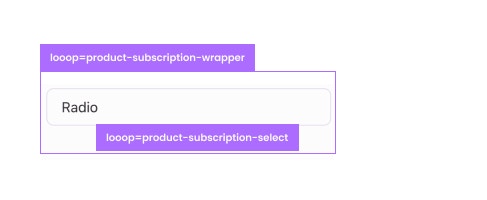 1. Create a div block and give it following Attribute:
```html theme={null}
looop=product-subscription-wrapper
```
2.. Inside the div block, create a radio element and give it following Attribute:
```html theme={null}
looop=product-subscription-select
```
## Default Subscription value
For most ecommerce brand the subscripotion options start with one time purchase. You can define what this empty value should be by adding the following attribute to the radio element:
```html theme={null}
subscription-default=REPLACE_WITH_YOUR_DEFAULT_VALUE
```
Example:- subscription-default=One-time purchase
## Checked State
1. Create a div block and give it following Attribute:
```html theme={null}
looop=product-subscription-wrapper
```
2.. Inside the div block, create a radio element and give it following Attribute:
```html theme={null}
looop=product-subscription-select
```
## Default Subscription value
For most ecommerce brand the subscripotion options start with one time purchase. You can define what this empty value should be by adding the following attribute to the radio element:
```html theme={null}
subscription-default=REPLACE_WITH_YOUR_DEFAULT_VALUE
```
Example:- subscription-default=One-time purchase
## Checked State
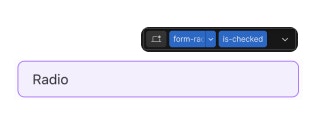 When the product subscription is selected, the radio button should be checked. To do this, we will add a combo class of `is-checked` to the radio button.
You can use this class to design how your checked radio buttons look.
## What will be updated?
On page load for each Shopify product subscription group we will duplicate the `product-subscription-wrapper` for each subscription we will duplicate `product-subscription-select` and update the `product-subscription-name` with the product option name.
Option Radio buttons element should be indise a Webflow Form element.
When the product subscription is selected, the radio button should be checked. To do this, we will add a combo class of `is-checked` to the radio button.
You can use this class to design how your checked radio buttons look.
## What will be updated?
On page load for each Shopify product subscription group we will duplicate the `product-subscription-wrapper` for each subscription we will duplicate `product-subscription-select` and update the `product-subscription-name` with the product option name.
Option Radio buttons element should be indise a Webflow Form element.