> ## Documentation Index
> Fetch the complete documentation index at: https://docs.uselooop.com/llms.txt
> Use this file to discover all available pages before exploring further.
# Okendo Reviews
> Show Okendo reviews collected on your Shopify store.
## Setup
Update the Looop Config to enable Google Autocomplete for address fields.
```html theme={null}
```
## Webflow Setup
Once you have configured the Looop Config, you can add the Okendo Reviews component to your Webflow project.
Add an empty div block to your Webflow project where you want to display any Okendo reviews component.
Add the following code to the custom attributes of the div block.
```html theme={null}
looop=okendo-widget
```
```html theme={null}
okendo-widget=OKENDO_COMPONENT_TYPE
```
You can see list of available components [here](#okendo-reviews-component-types).
## Get Okendo User ID
1\. Navigate to [https://reviews.okendo.io/admin/#/reviews](https://reviews.okendo.io/admin/#/reviews)
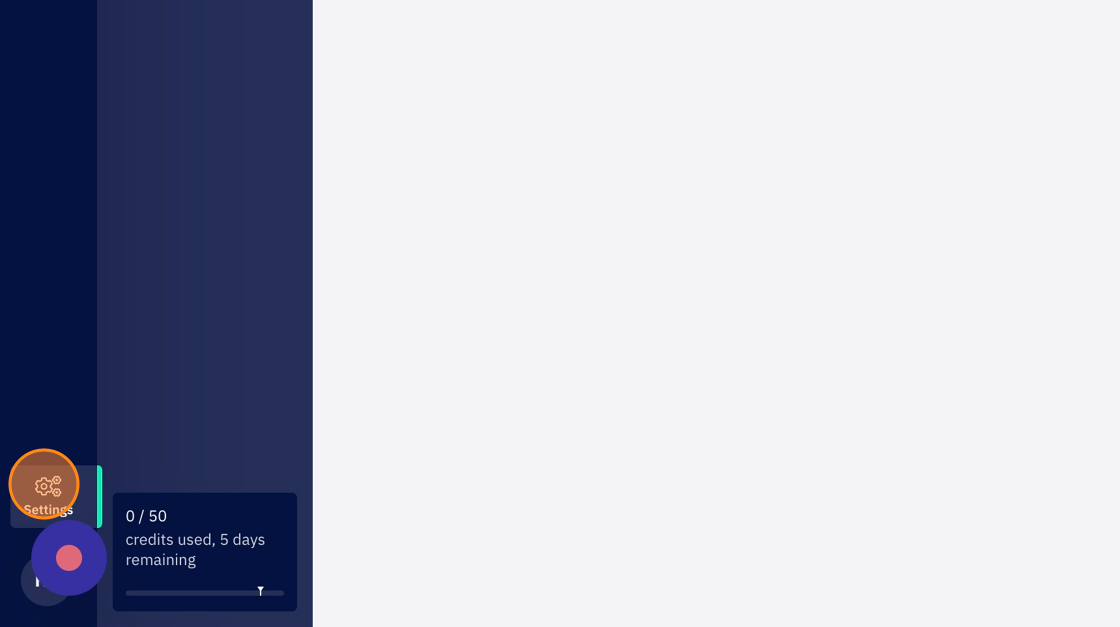
2\. Go to settings.
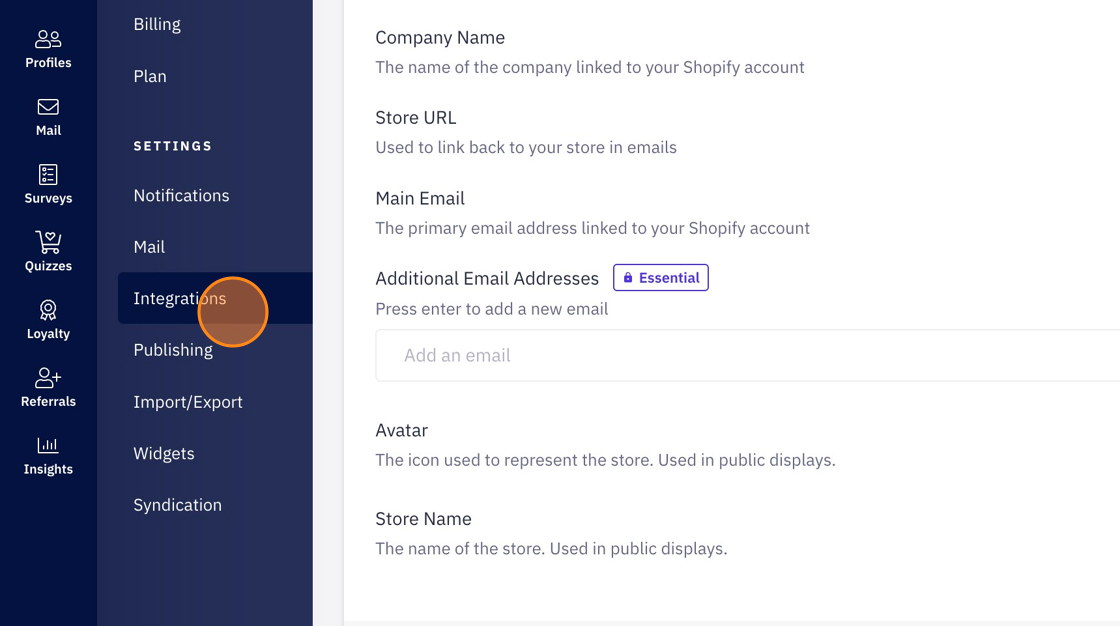
 3\. Click "Integrations"
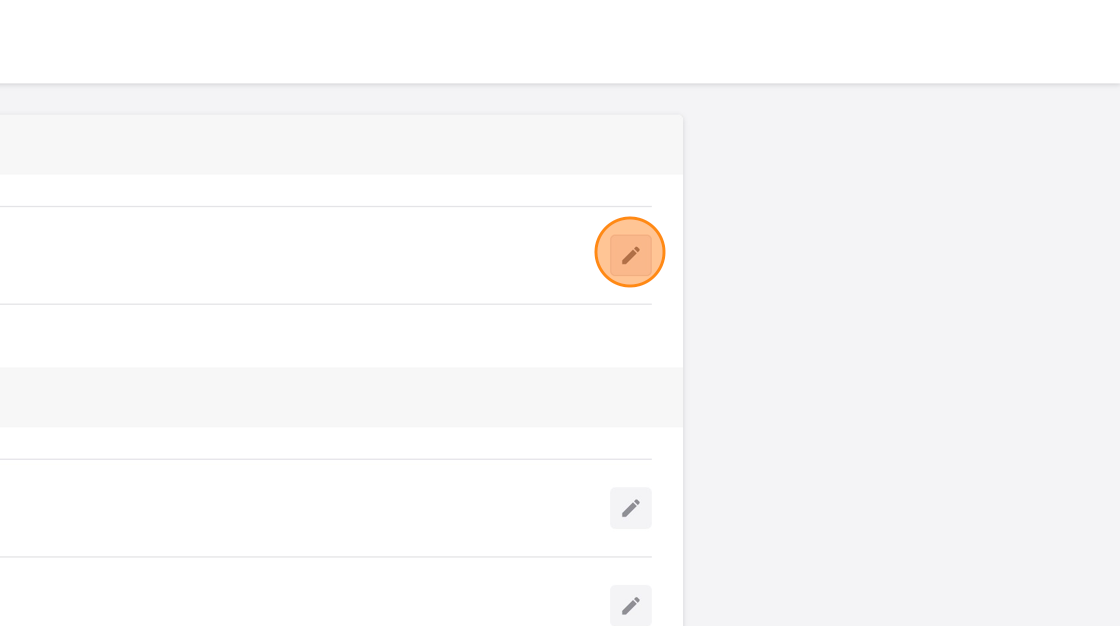
 4\. Click on the pencil icon next to the `Okendo` in `Credentials` tab to see your Okendo User ID.
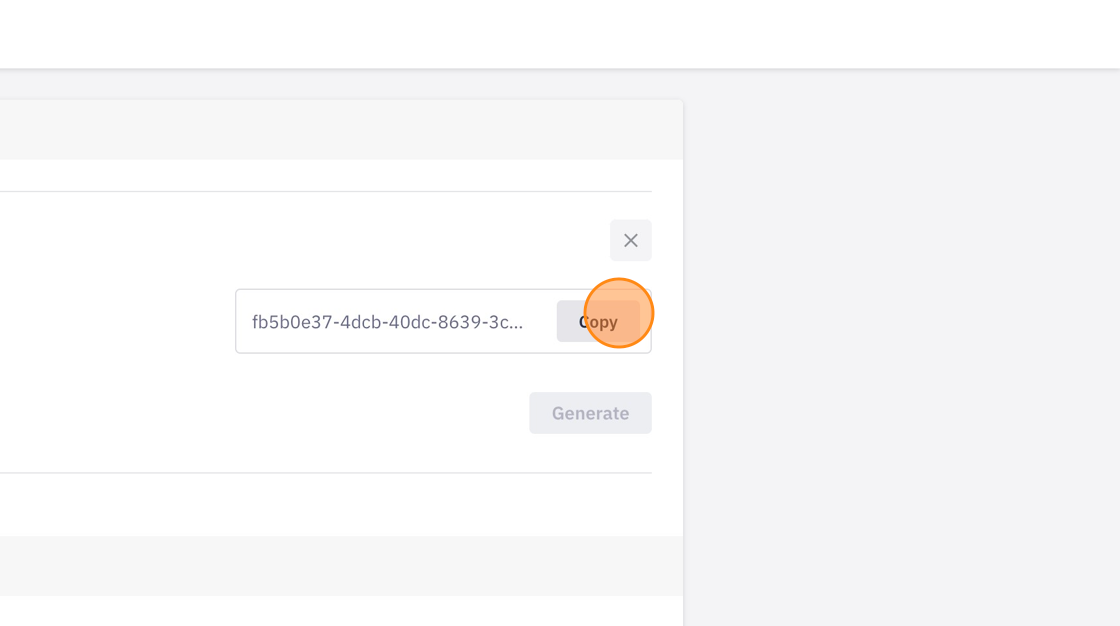
 5\. Click "Copy" to copy the User ID.
 ## Okendo Reviews Component Types
1. [Review Widget](https://docs.okendo.io/on-site/on-site-widgets/reviews-widget)
```html theme={null}
okendo-widget=data-oke-widget
```
2. [Star Rating](https://docs.okendo.io/on-site/on-site-widgets/star-rating)
```html theme={null}
okendo-widget=data-oke-star-rating
```
3. [Questions Widget](https://docs.okendo.io/on-site/on-site-widgets/questions-widget)
```html theme={null}
okendo-widget=data-oke-questions-widget
```
4. [Carousel Widget](https://docs.okendo.io/on-site/on-site-widgets/reviews-carousel-widget)
```html theme={null}
okendo-widget=data-oke-carousel
```
## Okendo Reviews Component Types
1. [Review Widget](https://docs.okendo.io/on-site/on-site-widgets/reviews-widget)
```html theme={null}
okendo-widget=data-oke-widget
```
2. [Star Rating](https://docs.okendo.io/on-site/on-site-widgets/star-rating)
```html theme={null}
okendo-widget=data-oke-star-rating
```
3. [Questions Widget](https://docs.okendo.io/on-site/on-site-widgets/questions-widget)
```html theme={null}
okendo-widget=data-oke-questions-widget
```
4. [Carousel Widget](https://docs.okendo.io/on-site/on-site-widgets/reviews-carousel-widget)
```html theme={null}
okendo-widget=data-oke-carousel
```