> ## Documentation Index
> Fetch the complete documentation index at: https://docs.uselooop.com/llms.txt
> Use this file to discover all available pages before exploring further.
# Sync Products
> Bring your Shopify products, variants, and options into your Webflow CMS.
## Sync Single Product
1\. Navigate to [https://manage.uselooop.com/stores](https://manage.uselooop.com/stores)
2\. Choose the store you want to sync with
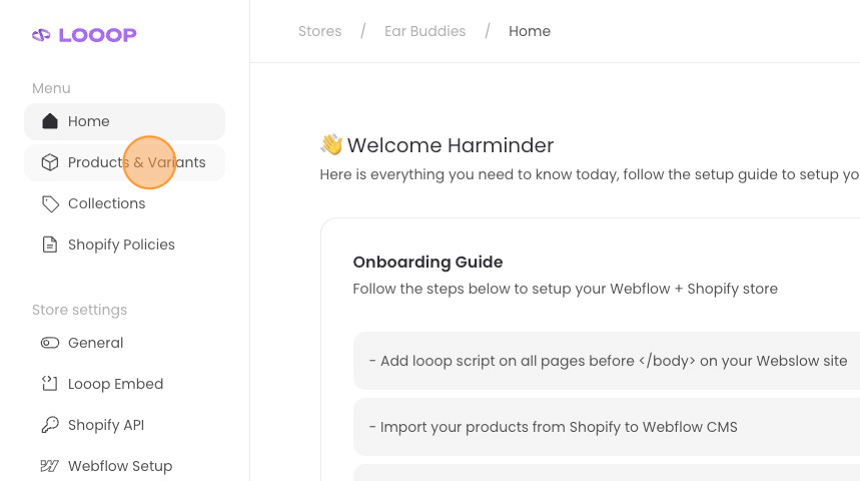
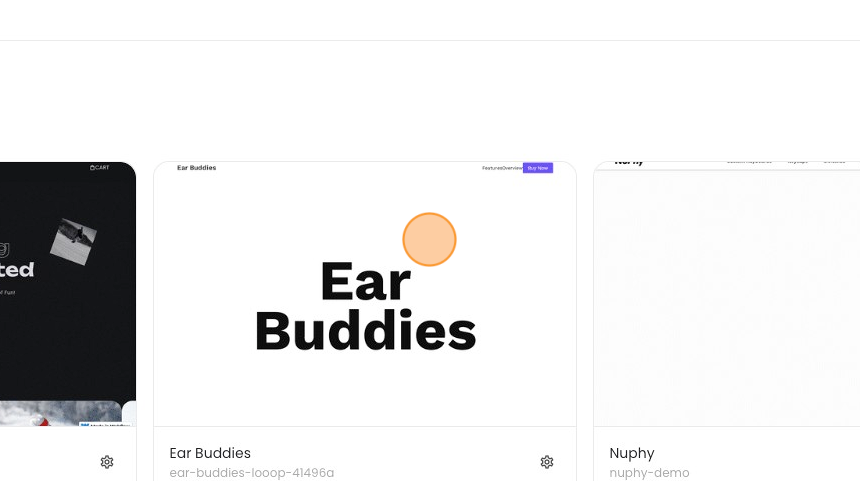 3\. Click "Products & Variants"
 4\. Click "Sync" button next to the product you want to sync
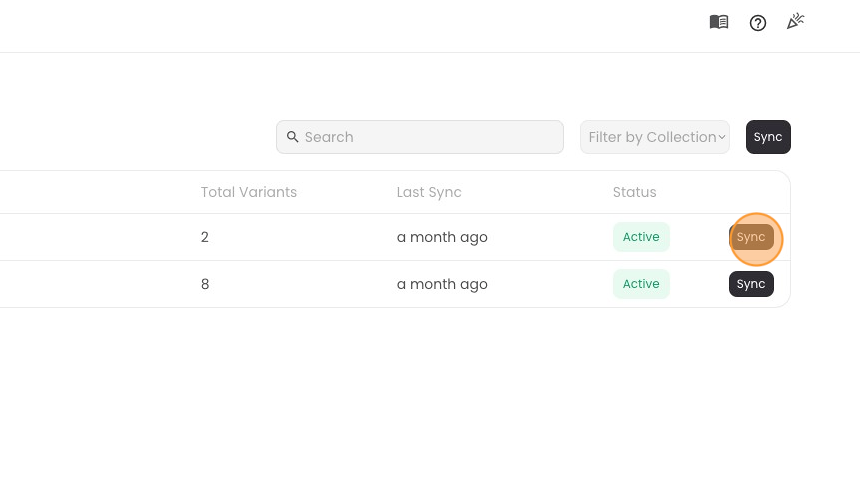 This will add the selected product & its variants to the sync queue. Once the sync is complete, you will see the product in your Webflow CMS.
## Sync All Products
1\. Navigate to [https://manage.uselooop.com/stores](https://manage.uselooop.com/stores)
2\. Choose the store you want to sync with
3\. Click "Products & Variants"
4\. Click "Sync" button on the top right corner
This will add the selected product & its variants to the sync queue. Once the sync is complete, you will see the product in your Webflow CMS.
## Sync All Products
1\. Navigate to [https://manage.uselooop.com/stores](https://manage.uselooop.com/stores)
2\. Choose the store you want to sync with
3\. Click "Products & Variants"
4\. Click "Sync" button on the top right corner
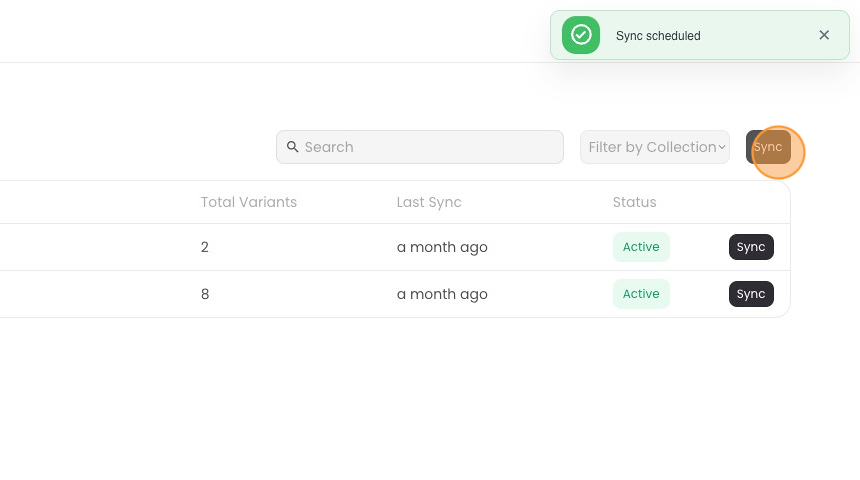 This will add all the products & their variants to the sync queue. Once the sync is complete, you will see the product in your Webflow CMS.