> ## Documentation Index
> Fetch the complete documentation index at: https://docs.uselooop.com/llms.txt
> Use this file to discover all available pages before exploring further.
# Sync Policies
> Bring your Shopify polices to Webflow
## Sync Policy
1\. Navigate to [https://manage.uselooop.com/stores](https://manage.uselooop.com/stores)
2\. Choose the store you want to sync with
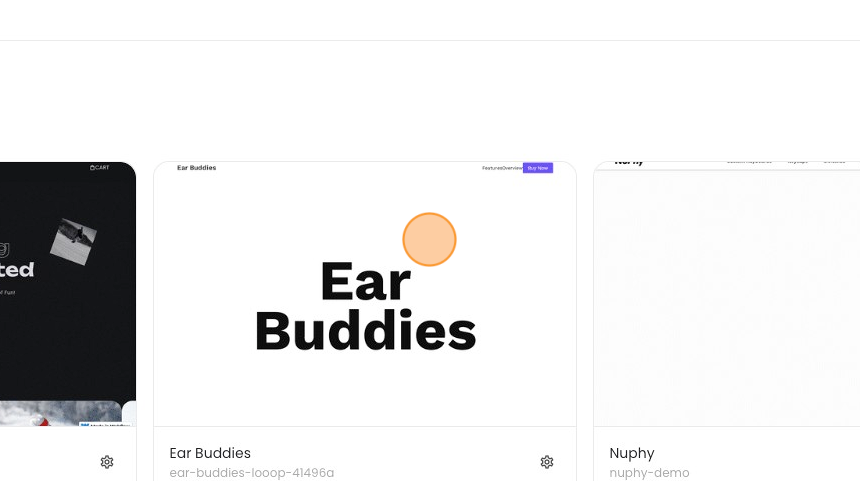 3\. Click "Shopify Policies"
 4\. Click "Sync"
 This will add the selected policy to the sync queue. Once the sync is complete, you will see the policy in your Webflow CMS.